
Welcome to our tutorial and documentation section for PDD Beta. Use the search box below to find answers.
-
Food Wizard Tutorials
0 out of 5 stars
| 5 Stars | 0% | |
| 4 Stars | 0% | |
| 3 Stars | 0% | |
| 2 Stars | 0% | |
| 1 Stars | 0% |
Osteo-Form SA
Osteo-Form SA powder is a pet supplement used as an aid in the prevention of dietary deficiencies of calcium, phosphorus, and vitamins A and D in dogs, cats, birds, and reptiles. Osteo-Form SA has an optimally bioavailable calcium: phosphorus (1.8:1) formulation that includes key vitamin components critical to cartilage metabolism, healthy bone growth, and effective fracture healing. Osteo-Form is also an ideal supplement for pregnant and lactating bitches.
Approximately 99% of calcium and 80% of phosphorus are found in the skeleton and teeth and, as such, are vital components of developing and maintaining a strong and healthy skeletal system. Vitamin D also plays an integral role in calcium and phosphorus absorption and bone mineralization. In growing animals, deficiencies of calcium, phosphorus, and/or Vitamin D most frequently result in rickets. Bone demineralization also occurs in adults when these nutrients are insufficient.
Osteo-Form SA Indications
For use as an aid in the prevention of dietary deficiencies of calcium, phosphorus, and vitamins A and D in dogs, cats, birds, and reptiles.
Feeding Directions: Dogs and Cats – To help prevent dietary deficiencies, give 1 to 2 slightly rounded teaspoonfuls per 10 kilograms (22 pounds) of body weight per day, as directed.
Many reptile and avian diets are low in calcium and high in phosphorus. Evaluate the entire diet before recommending the exact dose of Osteo-Form SA.
Administration: Add Osteo-Form SA to the daily ration or mix it with milk or water. To help Osteo-Form SA adhere to dry food, slightly moisten the food with water.
Each slightly rounded teaspoonful of Osteo-Form SA contains approximately 4 grams. A teaspoon measure is enclosed.
When using Osteo-Form SA as a maintenance dietary supplement, consider calcium and phosphorus from other food sources.
Guaranteed Analysis Per 350 grams:
Calcium, maximum 32.0%
Calcium, minimum 27.0%
Phosphorus, minimum 16.5%
Vitamin A, minimum (328,571 IU/kg) 115,000 IU
Vitamin D3, minimum (32,857 IU/kg) 11,500 IU
Ingredients: Dicalcium phosphate, tricalcium phosphate, calcium carbonate, polysorbate 80, citric acid, ascorbic acid, vitamin A palmitate, and cholecalciferol.
Preliminary Calculations
Before we enter the supplement into the database using the Food Wizard, we need to do a few minor calculations. The guaranteed analysis is for 350 grams, so we will use that amount when entering values into the wizard. First, we need to get the correct calcium value. Calcium is provided as two percentages: a minimum and a maximum. Whenever we see this, we will enter the average value. We also have to convert the percentage to a gram weight.
The average percentage of calcium is (32 + 27) / 2 = 29.5 %
Therefore, the calcium value we will enter into the wizard is 350 x 29.5 % = 350 x .295 = 103.25 grams
The phosphorus value is easier: 350 x 16.5 % = 350 x .165 = 57.75 grams
We will enter Vitamin A & D as is.
The other key piece of data is the serving size (one rounded tsp equals 4 grams), which we will enter at the end.
Food Wizard Tutorial
Below are screenshots showing the values we enter into Food Wizard. Open Food Wizard and enter the values as shown.
Step 1 - Add Common Measure
The image below shows the first tab in the Food Wizard. The guaranteed analysis shows values per 350 grams. So we will use this as our common measure. Usually, common measures refer to units like teaspoons, tablespoons, cups, liquid measures, etc. The common measures are usually less than 100 grams. In this case, the guaranteed analysis is for the non-standard measure of 350 grams. So we will just use what we can. The critical value here is the measure weight. This has to be 350 grams. The amount and the measure values are just for identification.
Enter the following values:
- 350 grams = 350 Gram
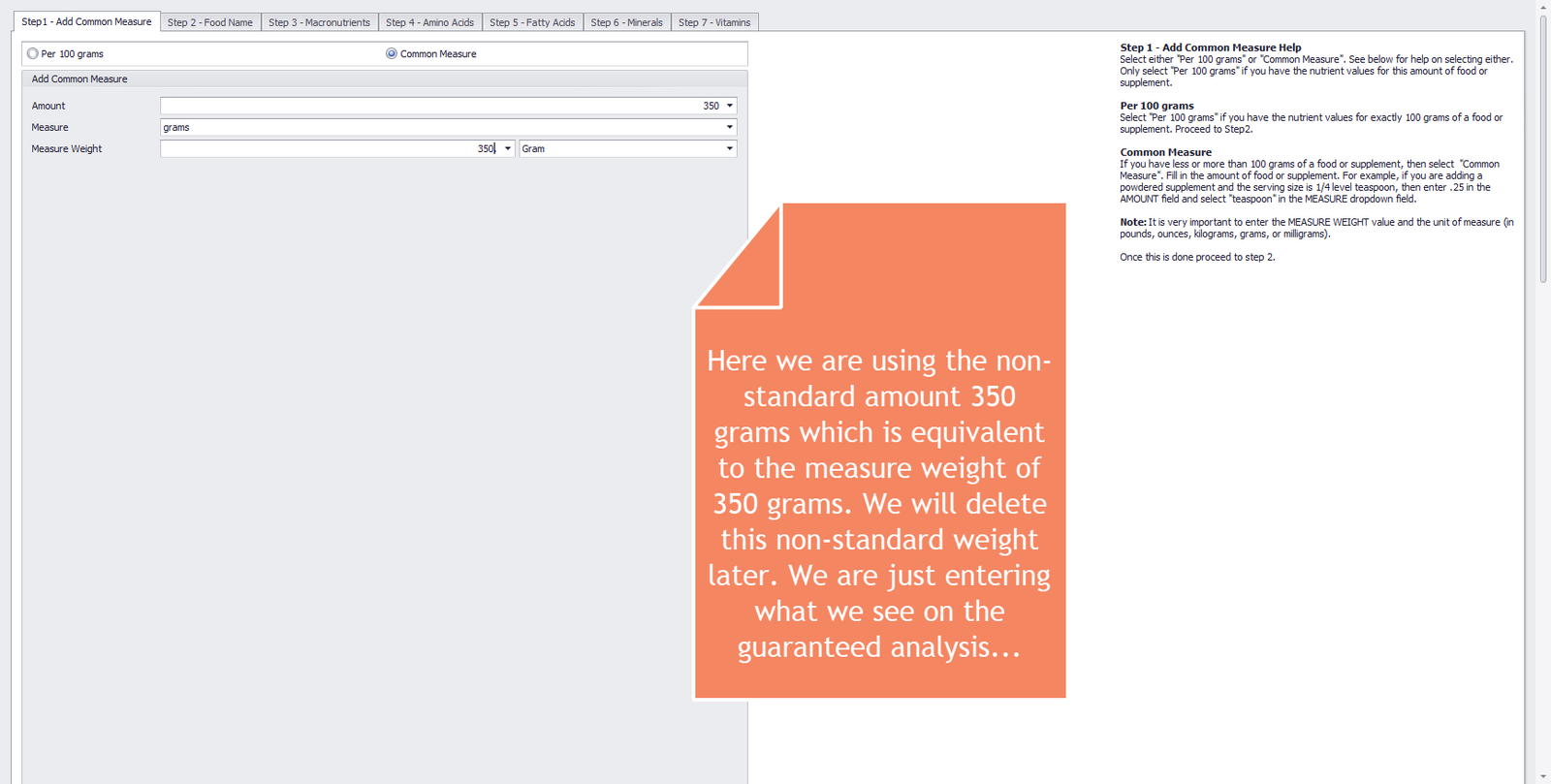
Step 1 – Add Common Measure
Step 2 - Food Name
The image below shows the second tab in the Food Wizard. The only required value that you have to enter in this tab is the name of the food or supplement. To help you find this ingredient in the future, enter keywords in the common name field. We also enter the manufacturer’s name (if we know it), as it may help distinguish similar products from different manufacturers.
Enter the following values:
- Food Name = Osteo Form SA
- Common Name = calcium phosphorus supplement with Vitamin A & D
- Manufacturer Name = VetaMix
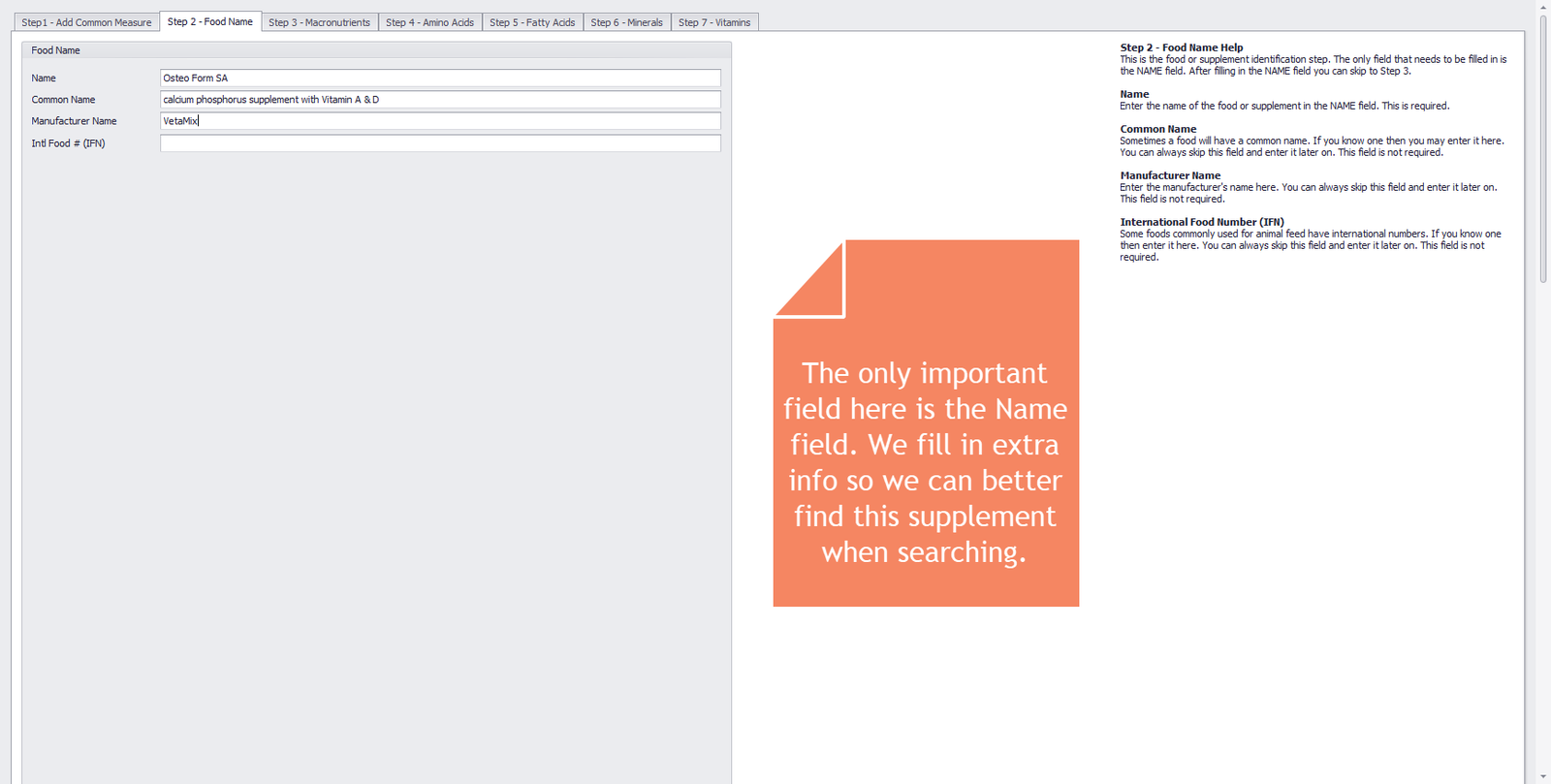
Step 2 – Food Name
Step 3 - Macronutrients
The image below shows the third tab in the Food Wizard. Since Osteo-Form SA is a mineral/vitamin supplement, Food Energy is 0, and we enter 100% (or 350g) for the Ash value.
Enter the following values:
- Food Energy = 0 kcal
- Ash = 350 g
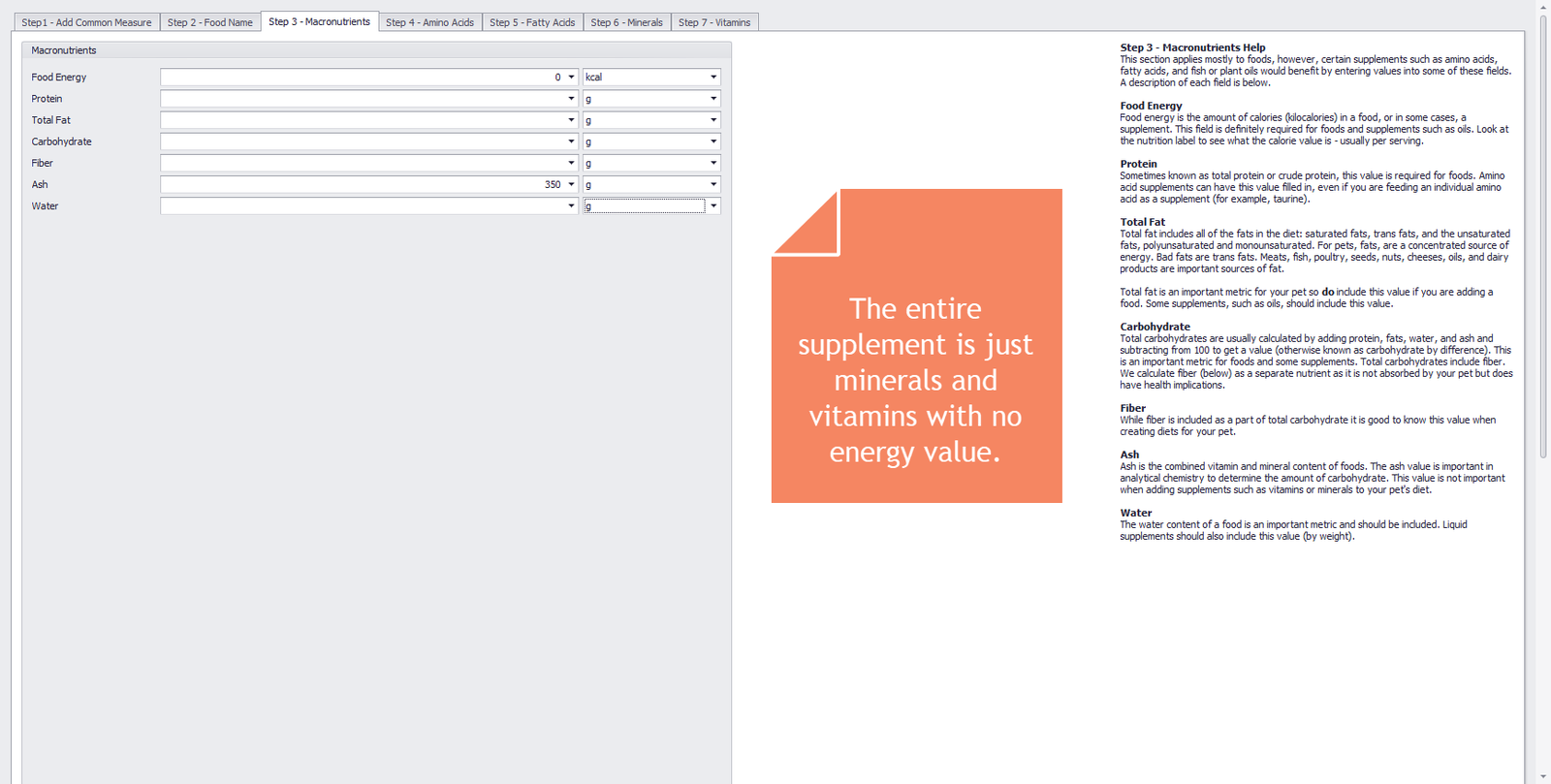
Step 3 – Macronutrients
Step 4 - Amino Acids
The image below shows the fourth tab in the Food Wizard. Because the guaranteed analysis lists no amino acid values, we leave this tab blank.
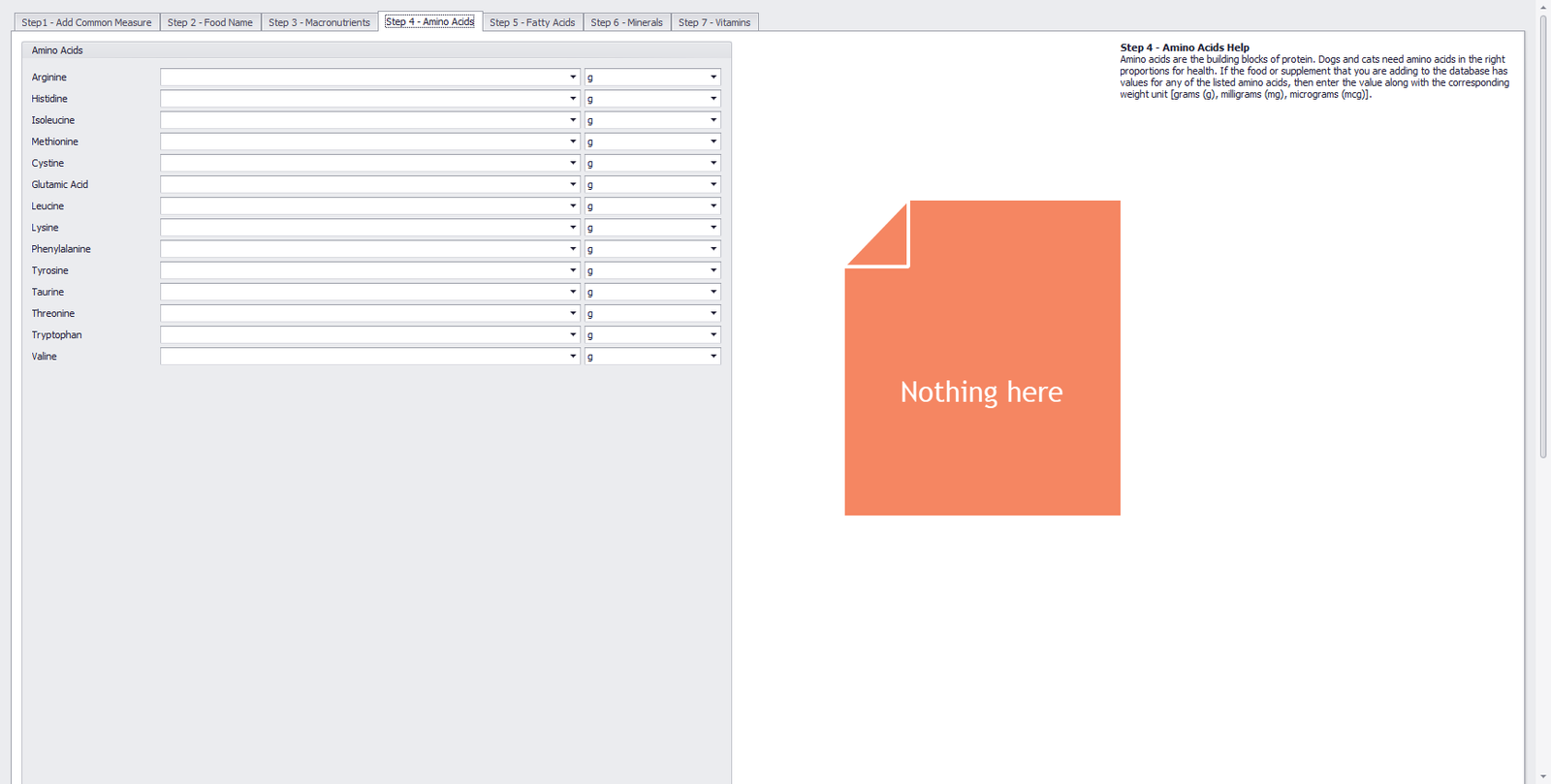
Step 4 – Amino Acids
Step 5 - Fatty Acids
The image below shows the fifth tab in the Food Wizard. Since the guaranteed analysis lists no values for fatty acids, we leave this tab blank.
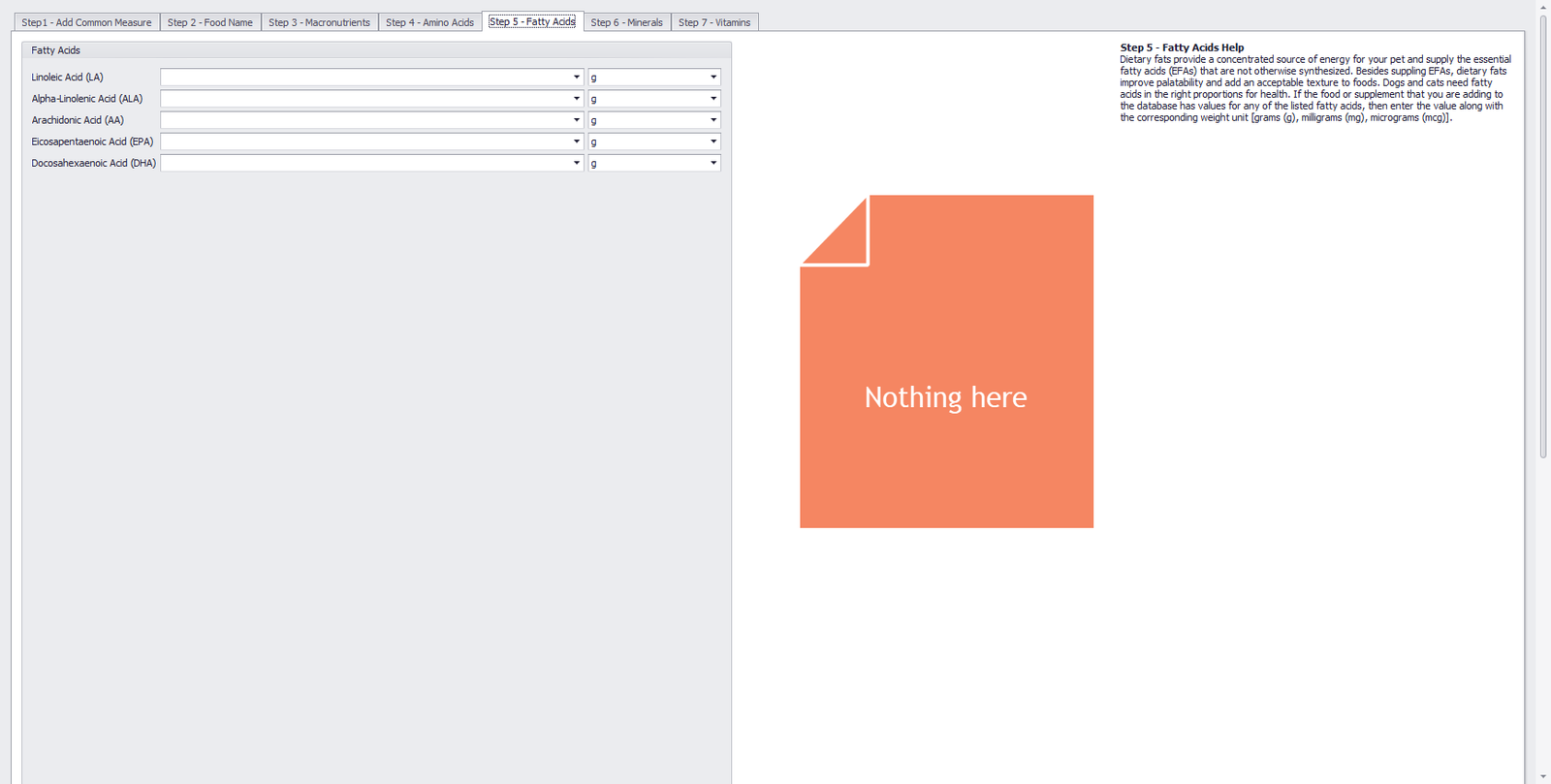
Step 5 – Fatty Acids
Step 6 - Minerals
The image below shows the sixth tab in the Food Wizard. We just enter the calcium and phosphorus values that we calculated for 350 grams of this supplement. It is important to use the correct unit of measurement. We changed the unit to grams (g).
Enter the following values:
- Calcium = 103.25 g
- Phosphorus = 57.75 g
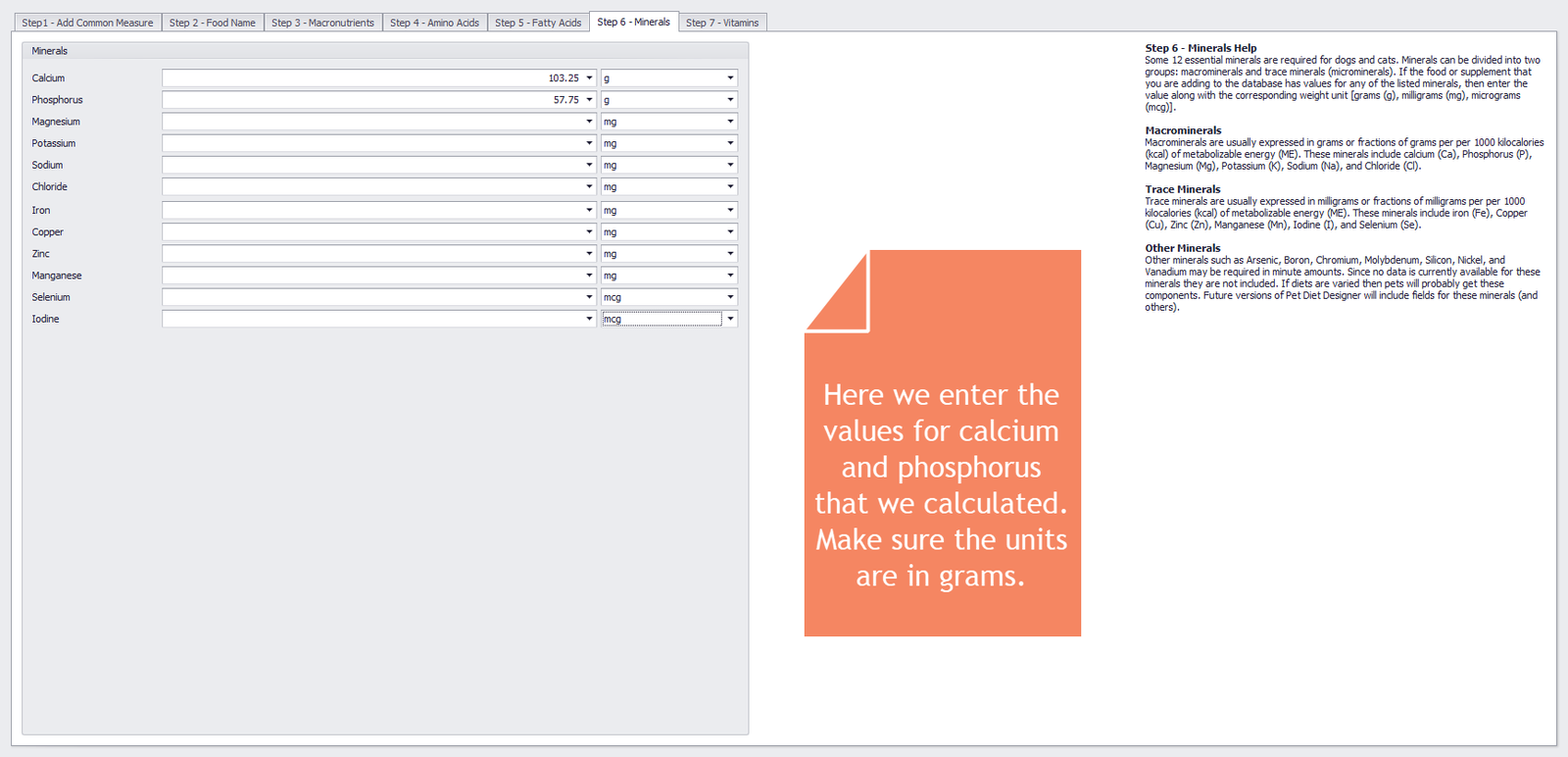
Step 6 – Minerals
Step 7 - Vitamins
The image below shows the seventh, and final, tab in the Food Wizard. It is straightforward to enter all vitamin values as is. The Vitamin A value is listed in International Units (IU). PDD accepts values for Vitamin A from either an animal (retinol) or a plant (beta-carotene) source. We chose to enter the Vitamin A value as “IU as retinol.”
Enter the following values:
- Vitamin A = 115000 IU as retinol
- Vitamin D = 11500 IU
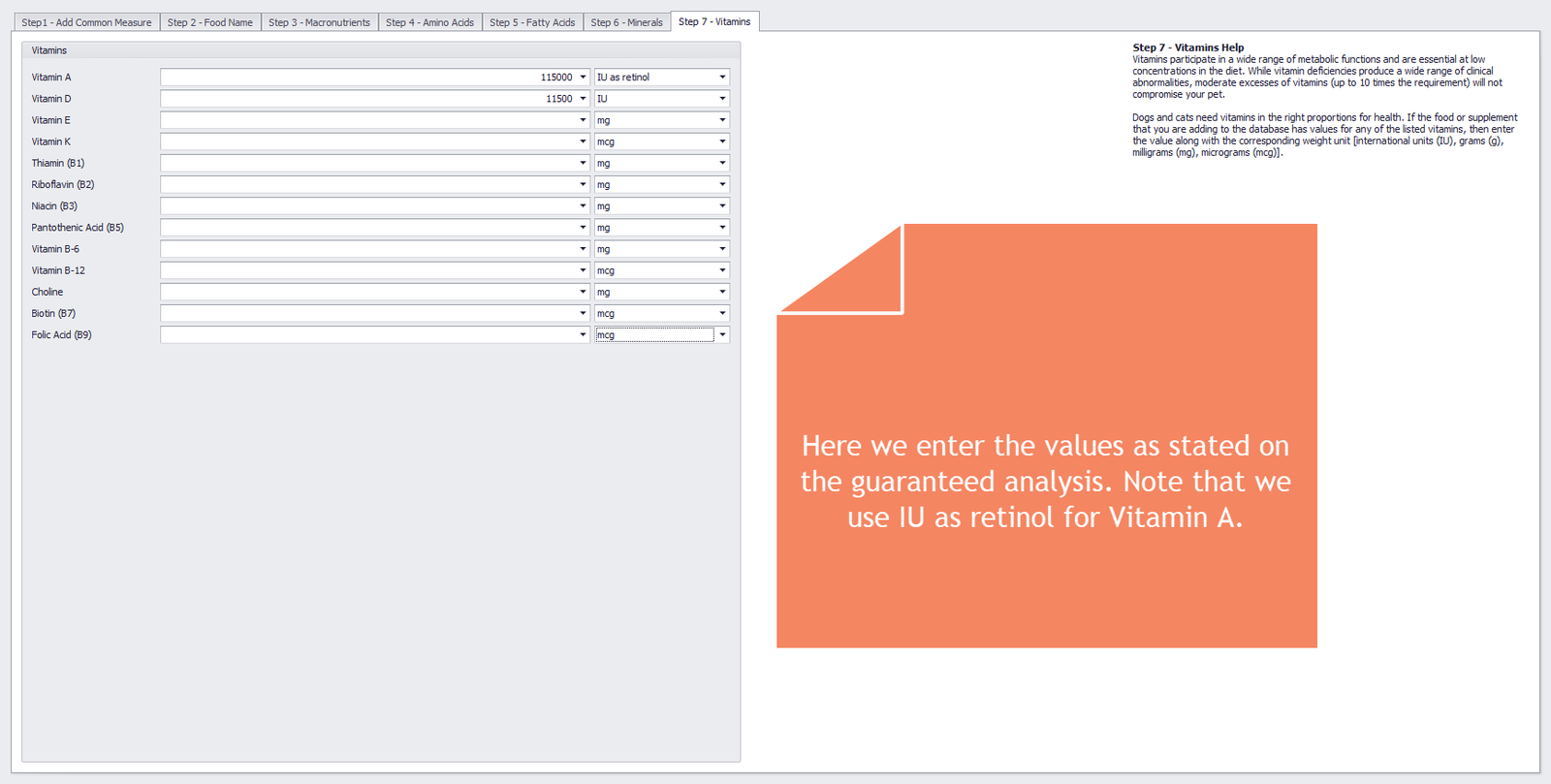
Step 7 – Vitamins
Conclusion
That’s it! We press the SAVE & CLOSE button on the ribbon, and the system converts and stores all values in the database as 100 grams of Osteo-Form SA. Next, we will view our new food/supplement in the Foods module. Click on the FOODS button on the ribbon to open up the Foods module.
Looking at our newly entered food
With the Foods module open, enter “Osteo” in the search textbox and click the FIND button. With the Osteo-Form SA entry highlighted, click on the EDIT button on the ribbon to see our newly entered values. Next, we show screenshots detailing how to delete and add common measures. Finally, we show you how you can validate the data you entered.
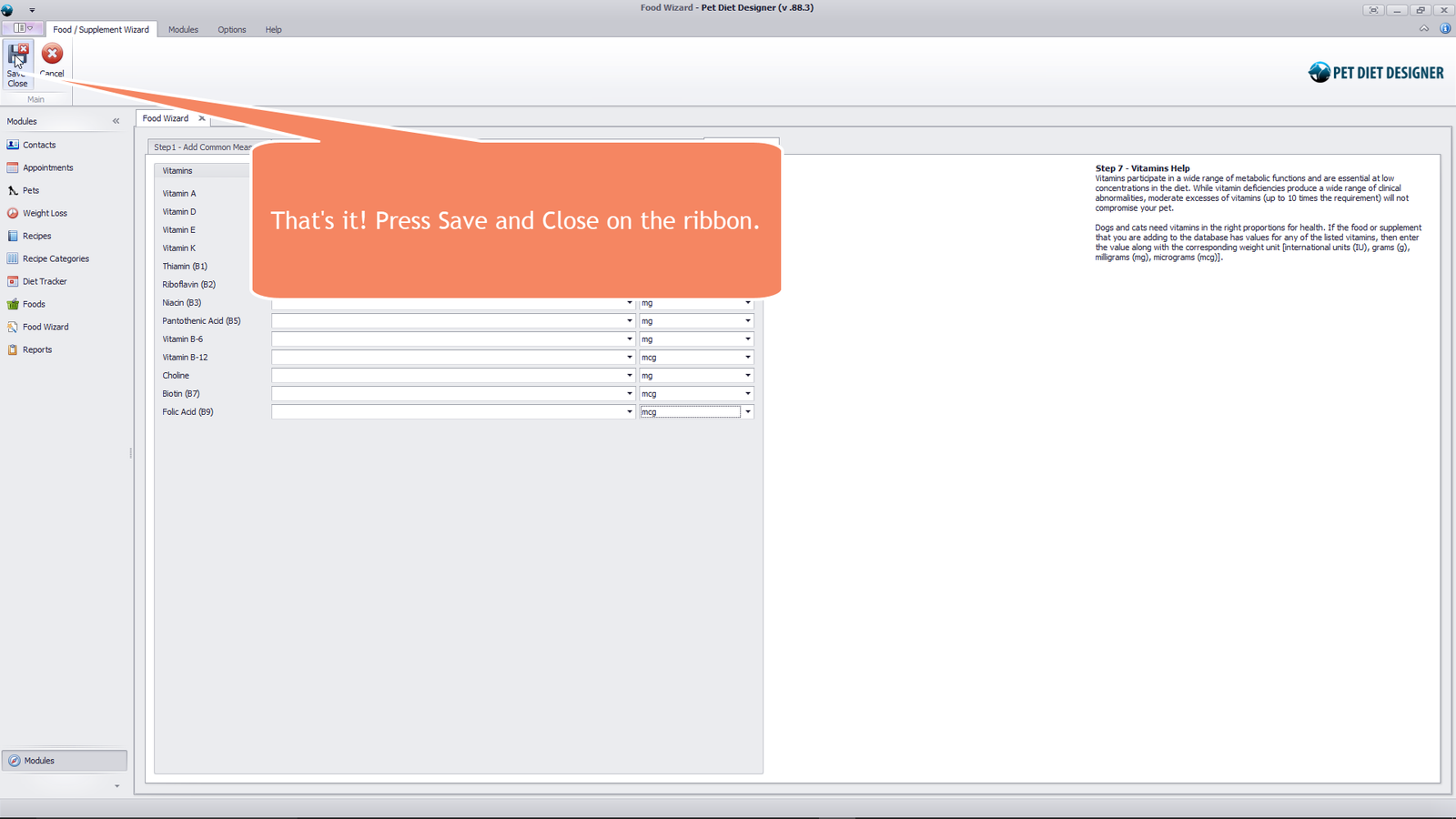
Press SAVE & CLOSE on the ribbon.
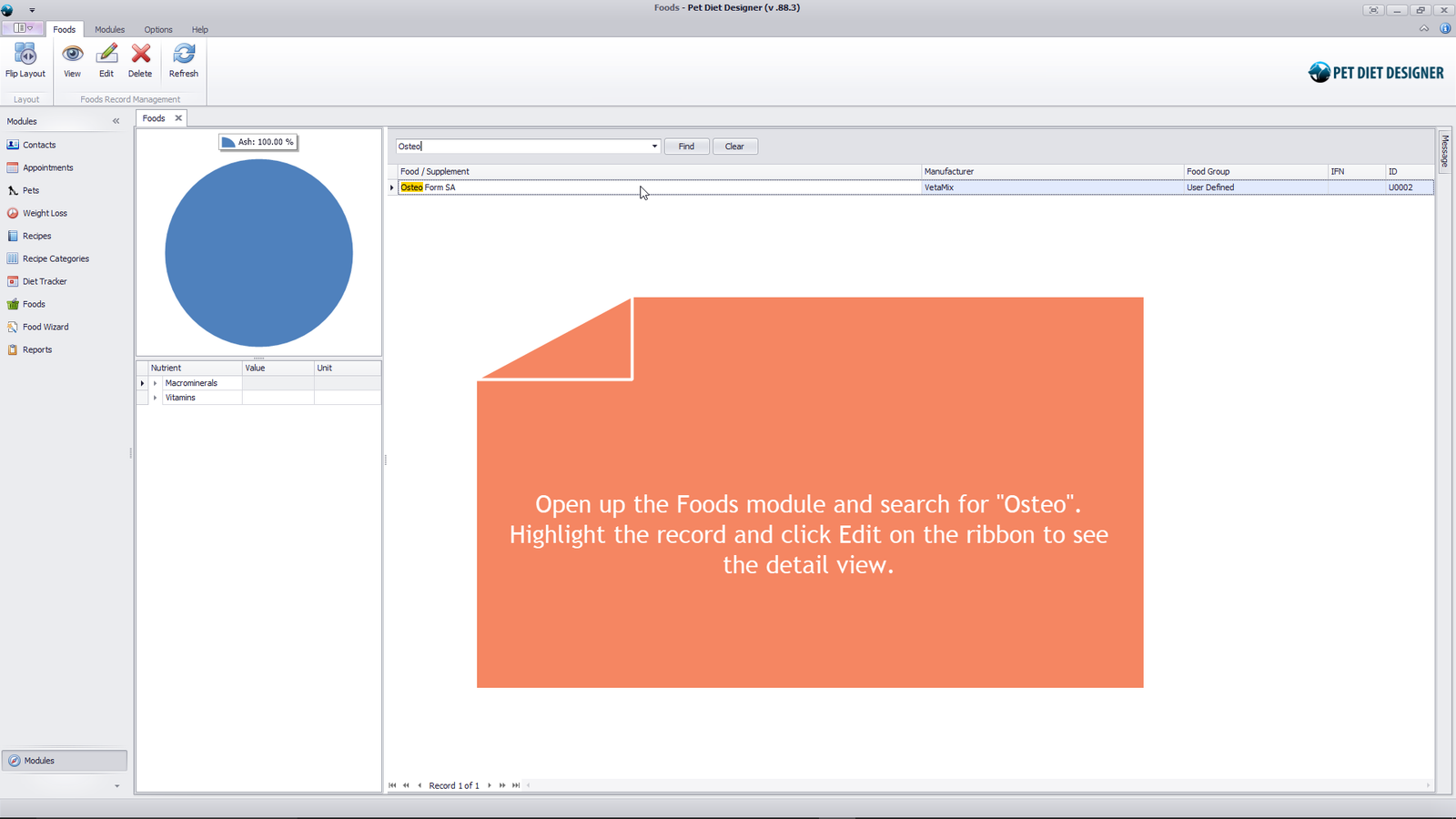
Search for “Osteo” in the Foods module.

Creating a new recipe for Spot.
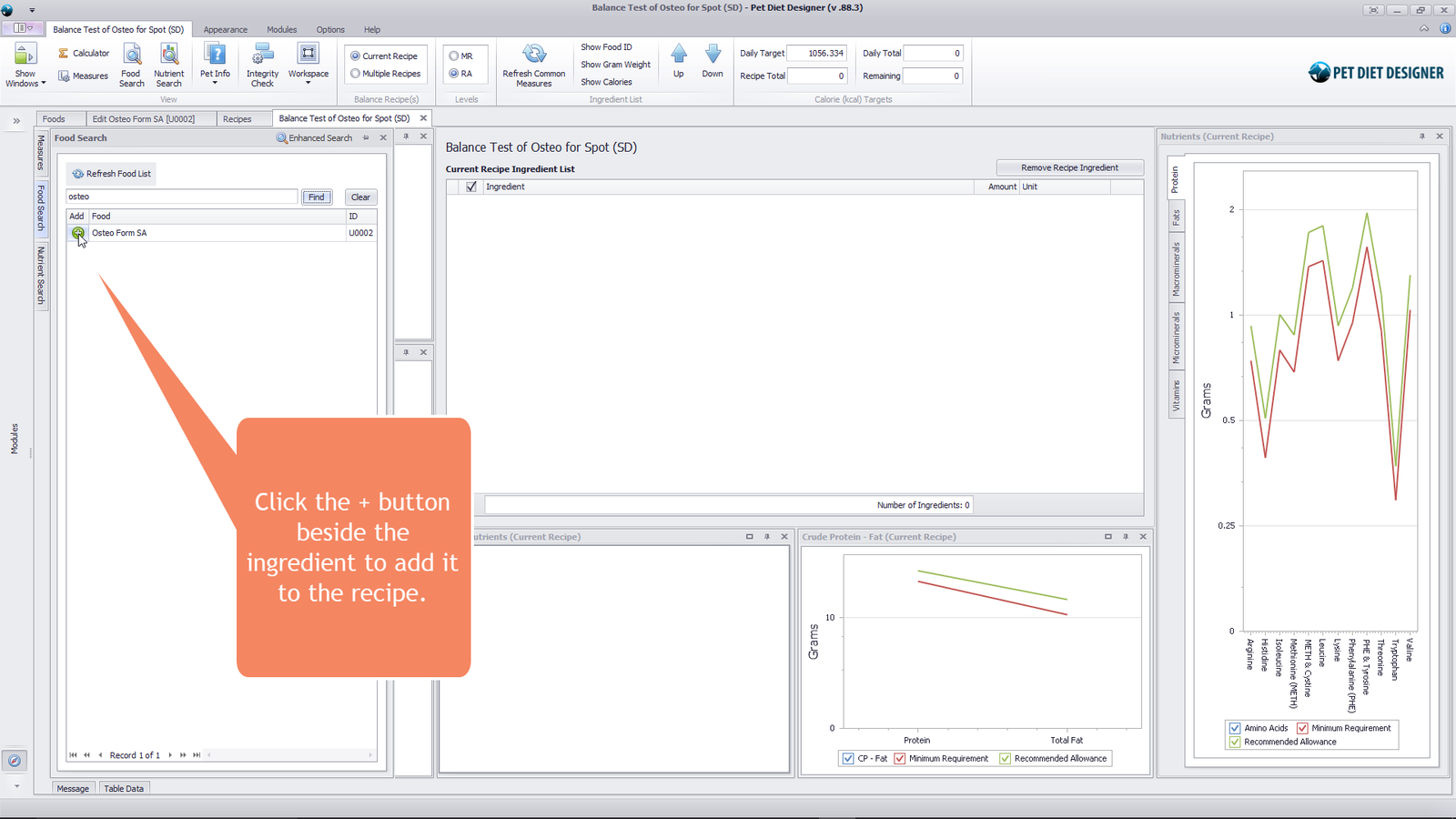
Adding Osteo supplement to the recipe.
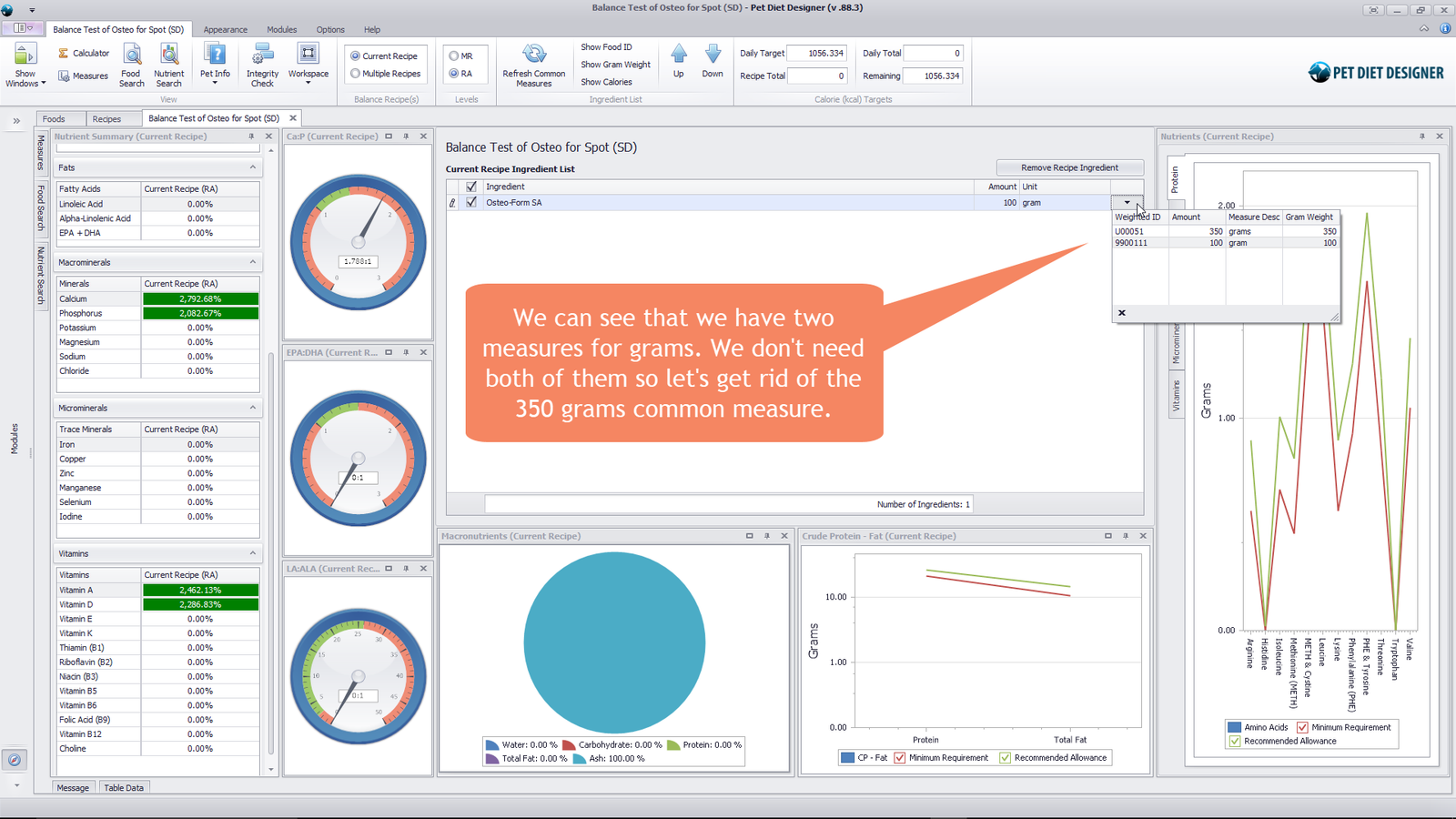
Showing duplicate measures for Grams.
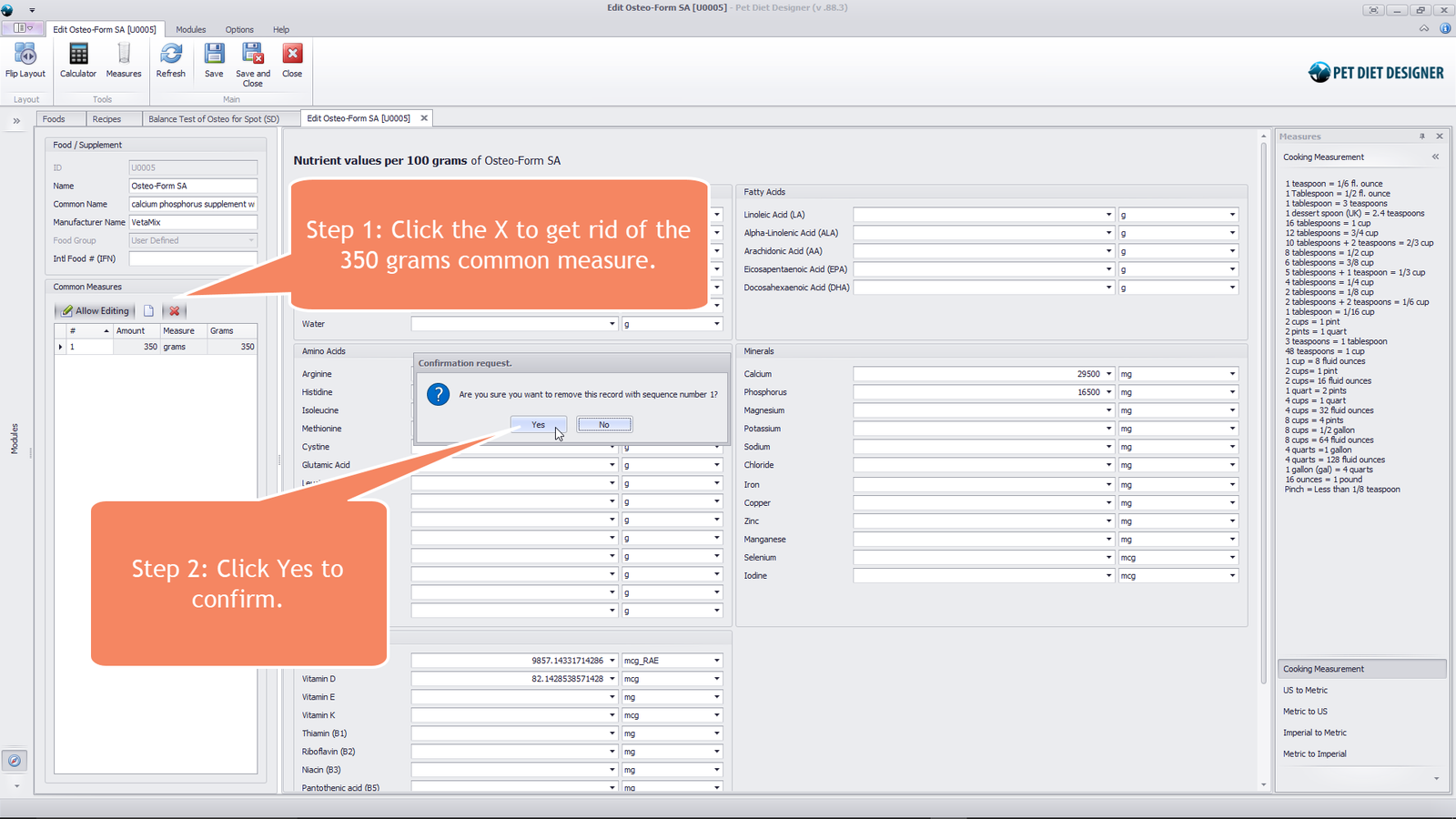
Deleting the 350 grams common measure.
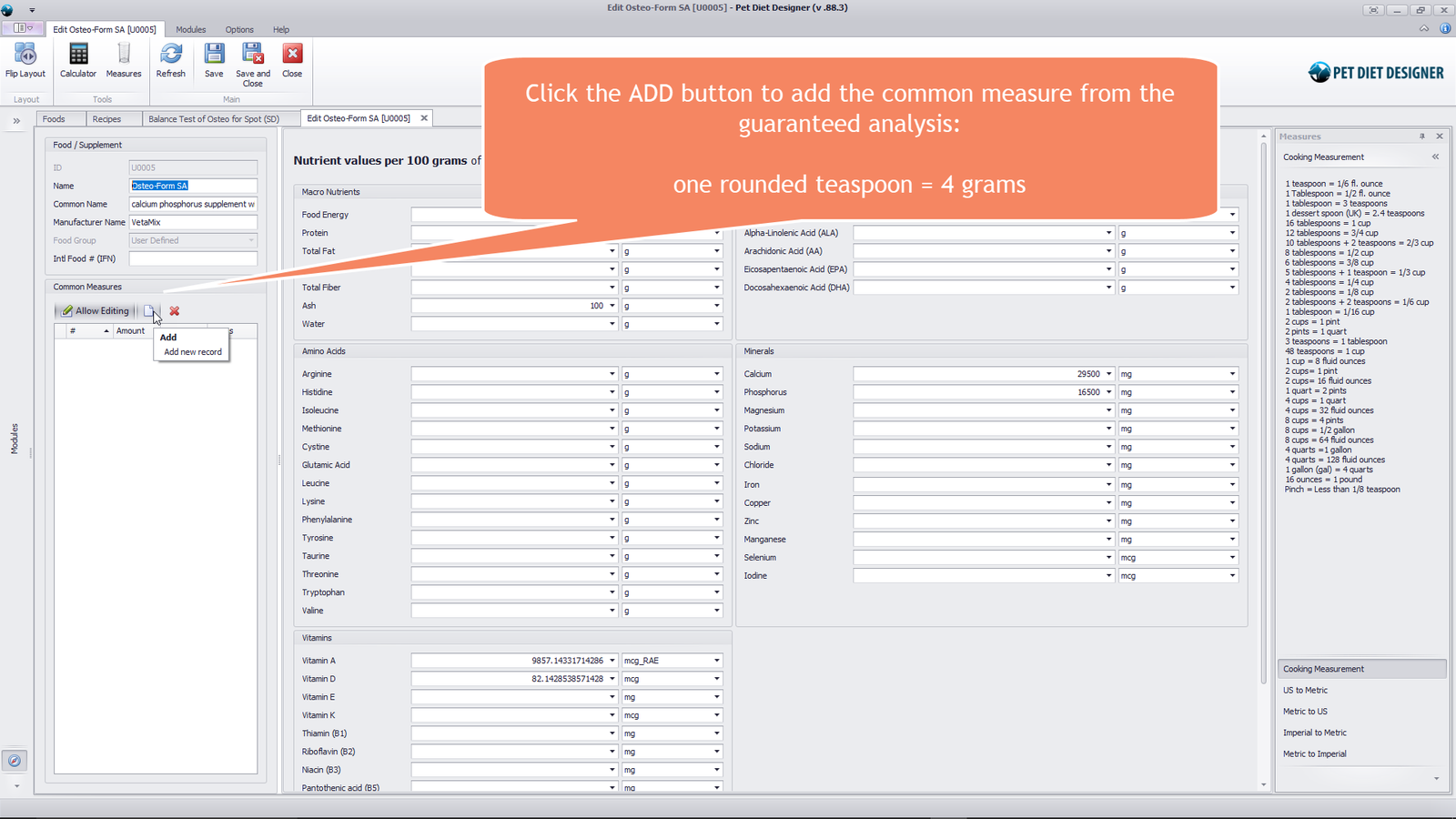
Preparing to add a common measure.
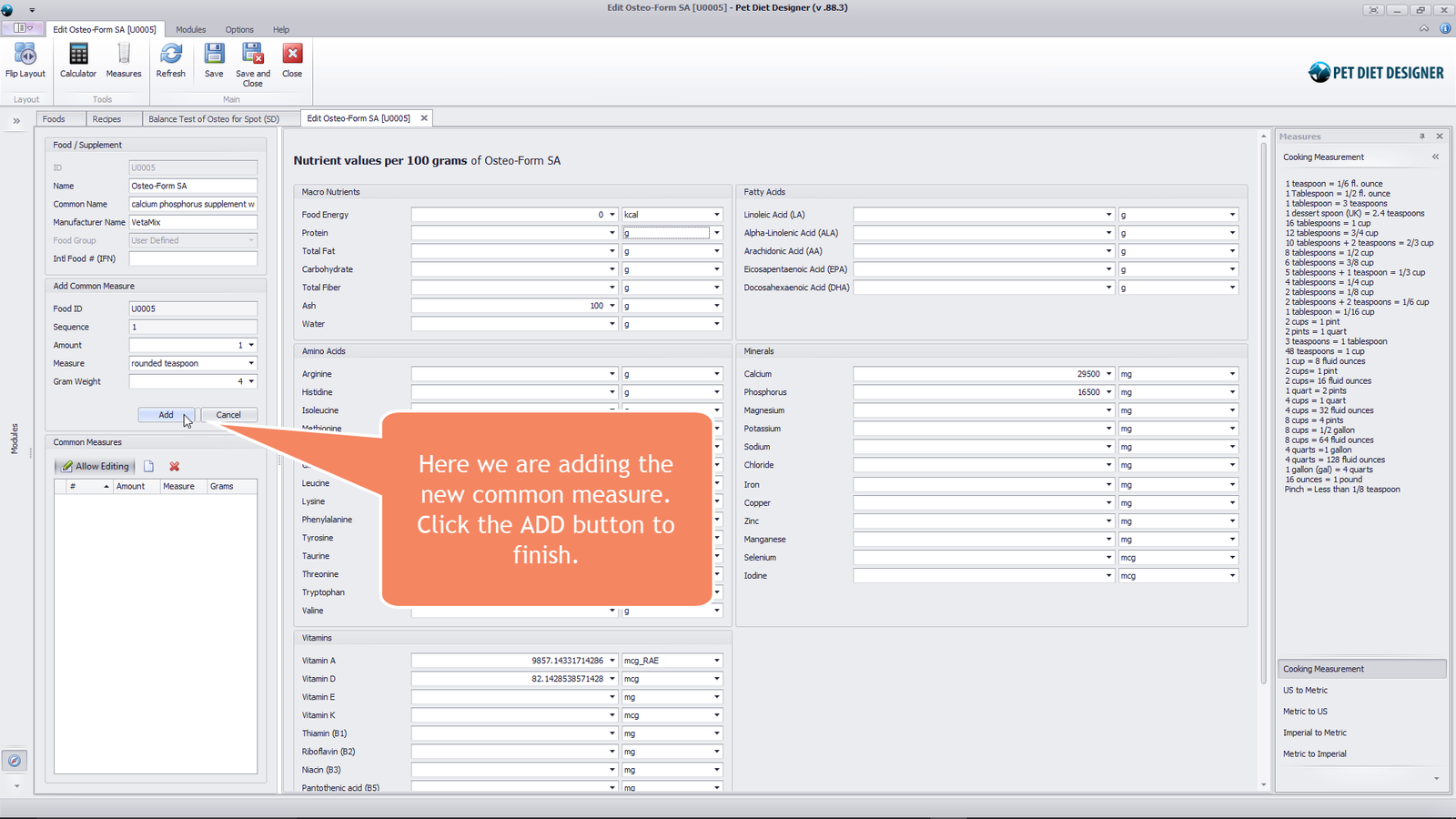
Adding the new common measure.
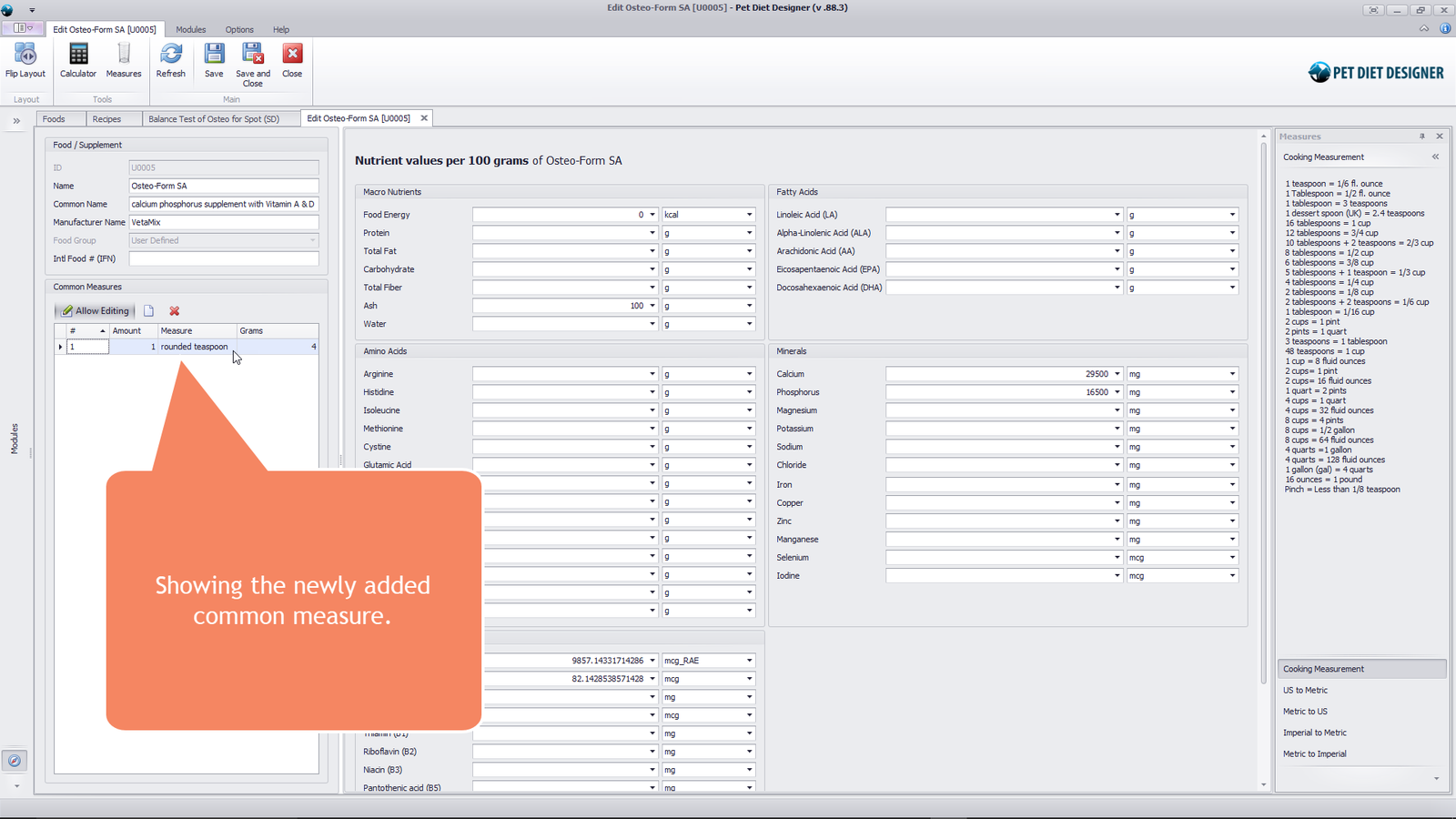
Showing the newly added common measure.
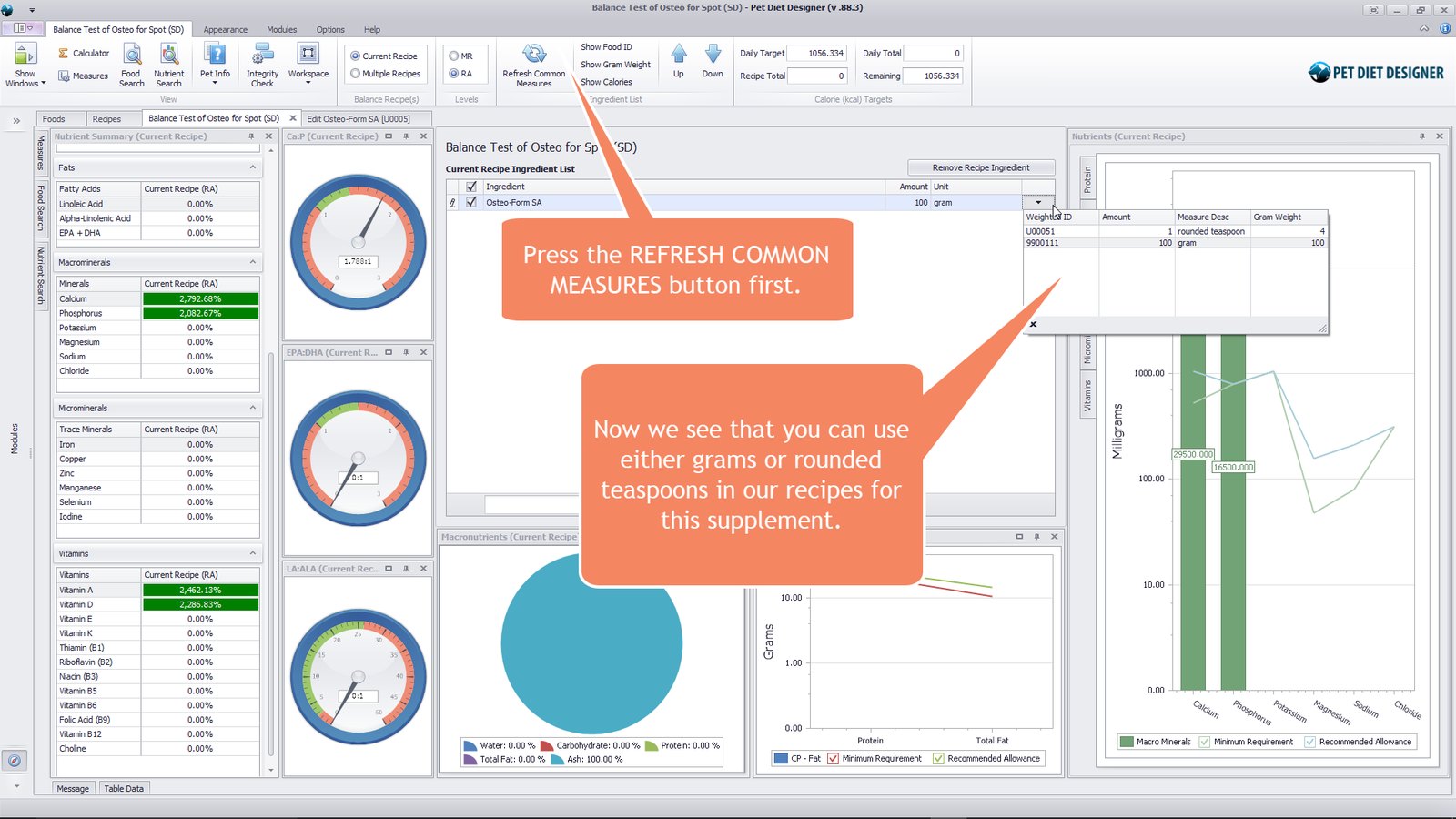
We can now use grams or rounded teaspoons in our recipes for this supplement.
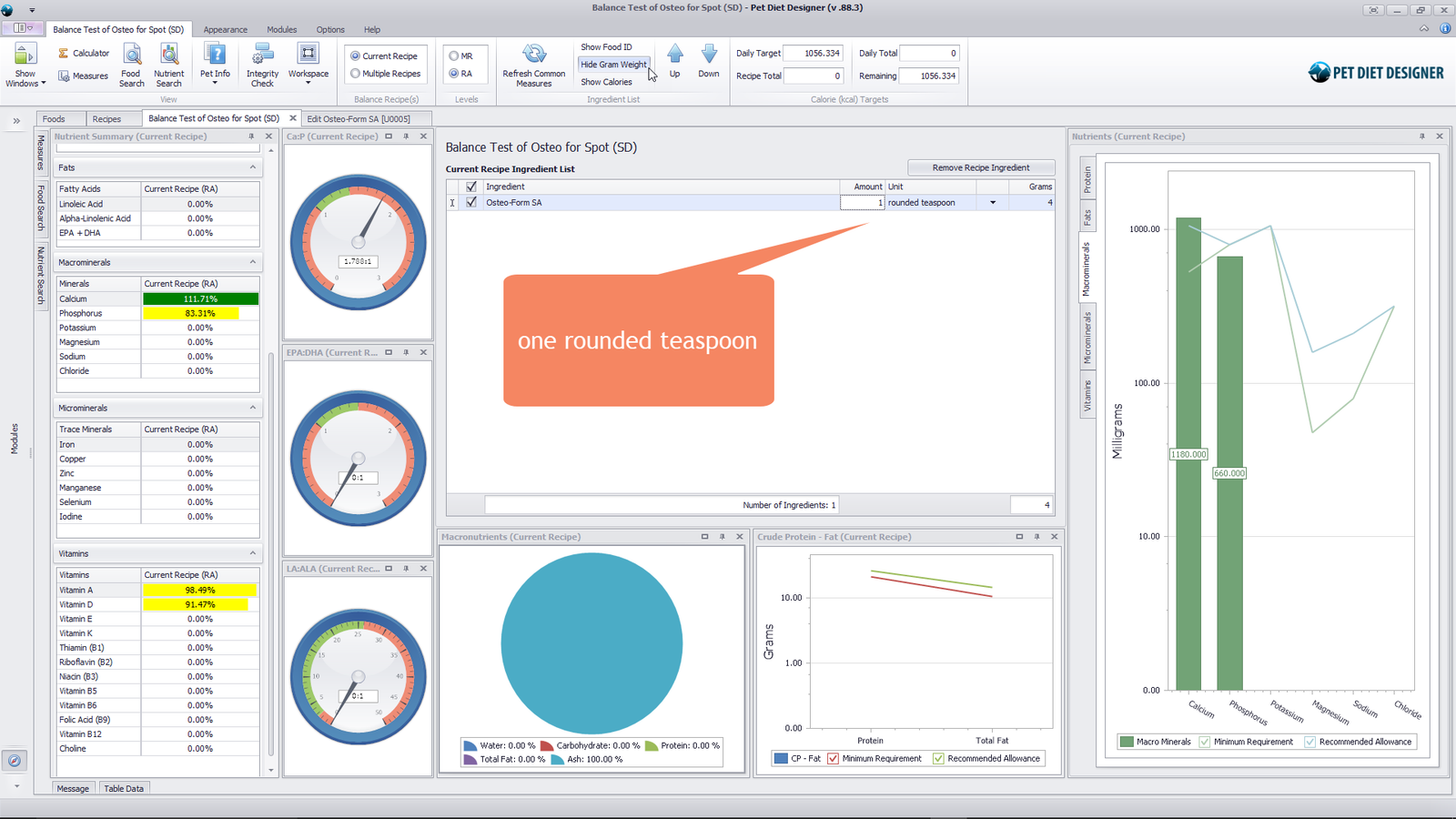
One rounded teaspoon.
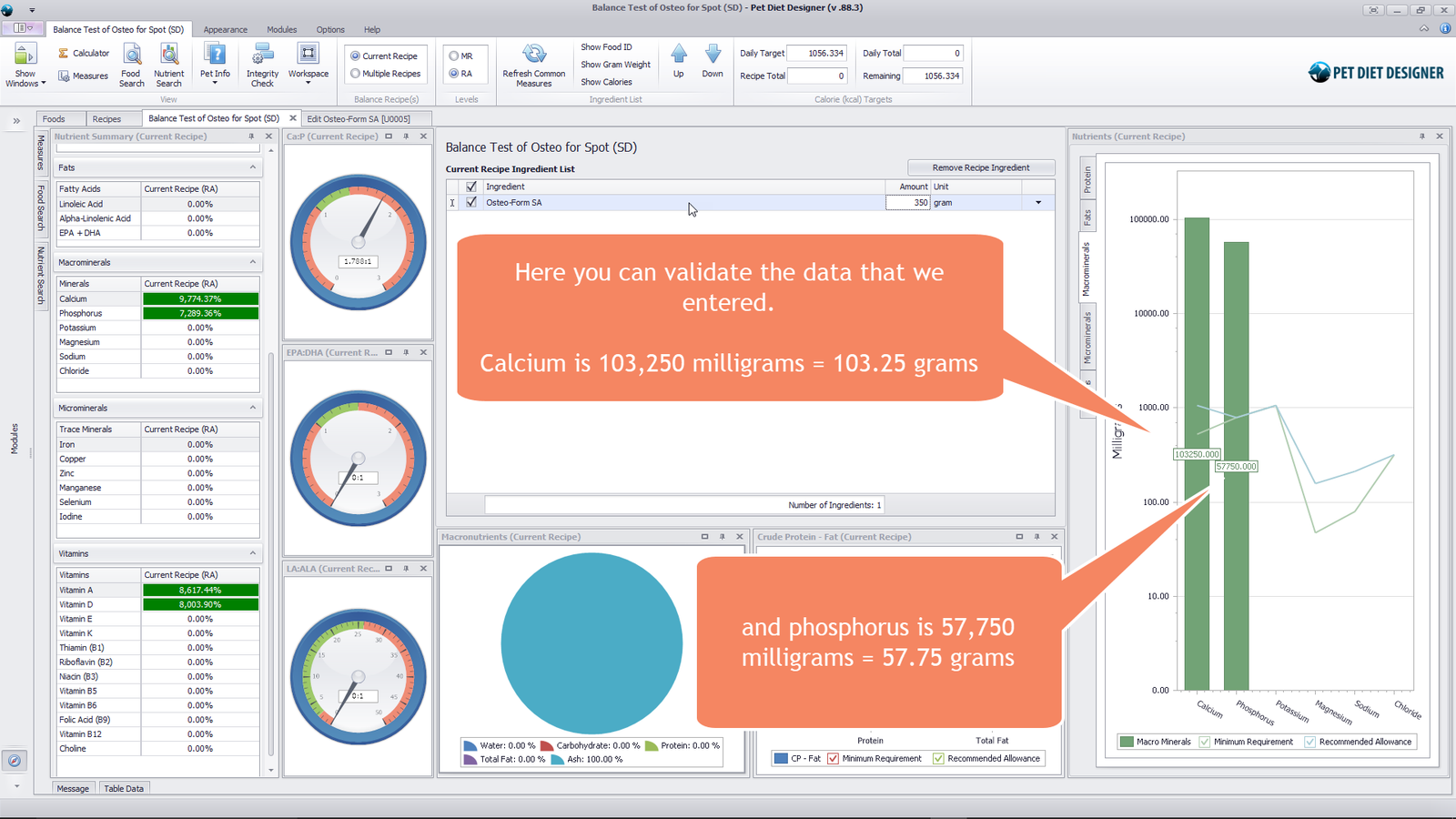
Validating the data that we entered.
0 out of 5 stars
| 5 Stars | 0% | |
| 4 Stars | 0% | |
| 3 Stars | 0% | |
| 2 Stars | 0% | |
| 1 Stars | 0% |