
Welcome to our tutorial and documentation section for PDD Beta. Use the search box below to find answers.
0 out of 5 stars
| 5 Stars | 0% | |
| 4 Stars | 0% | |
| 3 Stars | 0% | |
| 2 Stars | 0% | |
| 1 Stars | 0% |
Diet Tracker Overview
The Diet Tracker module lets you keep a detailed diet history for your cat or dog. Record any quantity of meals and snacks by weight, volume, and individual ingredient amount. It’s so powerful that you can even record partial recipes and any fraction or multiple of a recipe.
Sometimes your veterinarian may ask to see a diet history (especially if you make homemade food), or you may want to analyze your pet’s past diet. We have made it very easy to record this information. Just drag and drop a recipe onto the calendar, and a dialog pops up. With this dialog (explained below), you can record exactly how you have fed your pet.
You can also use the Diet Tracker module to balance multiple meals over a single day (see How to Balance Multiple Recipes in a Day).
Record Entry into Diet History
Recording a meal (or snack) entry in a pet’s diet history is easy. Just drag a recipe onto a time slot on the diet history calendar, and a dialog will pop up, letting you record the meal (entry) in several ways.
As Fed
The easiest way to record a meal in the diet history is the ‘As Fed’ dialog. When you first add a meal to the Diet History calendar, a ‘diet history record’ dialog pops up with the ‘As Fed’ form. Use this when you are feeding the exact recipe (in its entirety) to your pet. Select the SAVE button, and all nutrient information is recorded in the pet’s diet history. To edit, double-click the entry and the dialog will reappear. The image below shows the ‘As Fed’ form.
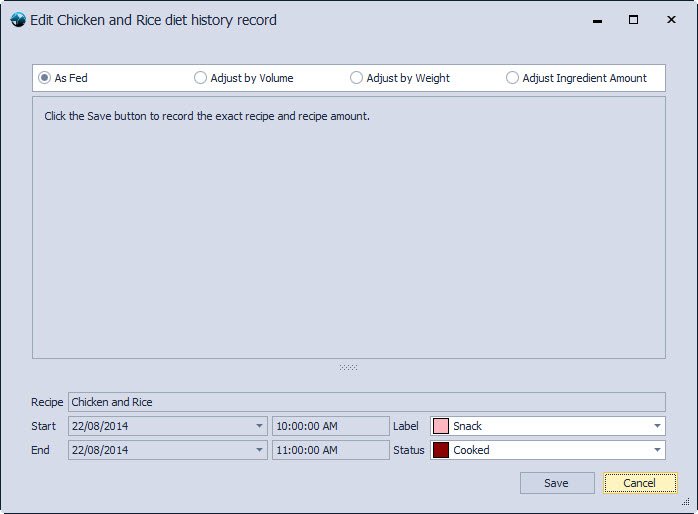
Record recipe As Fed
By Volume
Perhaps you are feeding the recipe split into 2 or more meals throughout the day. In this case, you may want to feed by volume—for example, one-half of the recipe in the morning and the other half in the evening. The image below shows the ‘Adjust by Volume’ form. In the image, the radio button labeled ‘1/2’ is selected. Next, press the SAVE button, and the system records all nutrient information for half of this recipe in the pet’s diet history. Of course, you would repeat this for the other half of the recipe in the evening. To edit, double-click an entry and the dialog will reappear showing your previous selection.
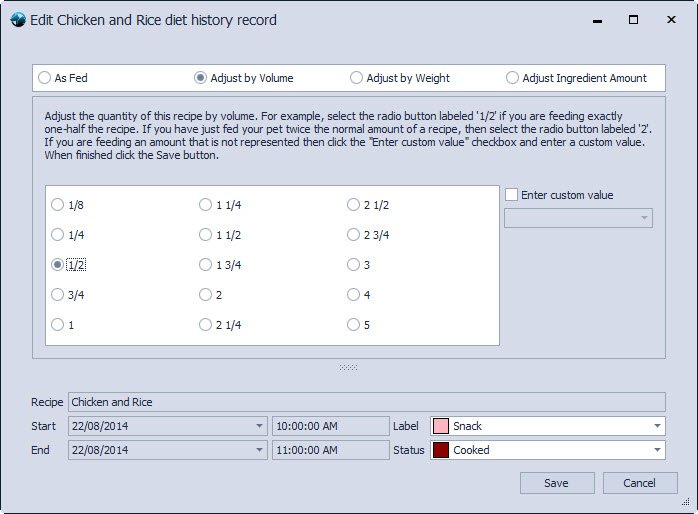
Record recipe By Volume
By Weight
You can also feed a recipe by weight. The image below shows the ‘Adjust by Weight’ form. In this example, you are feeding only 135 grams of the recipe’s total weight (932.35 grams). You may feed the remainder (or any amount) at other times throughout the day. There is no limit to how many meals you can feed except what you deem to be good judgment. Of course, you can use ounces, pounds, or kilograms instead of grams. Just select the appropriate unit measure. Next, press the SAVE button, and the system records all nutrient information for the weight amount you specified in the pet’s diet history. To edit, double-click the entry, and a dialog will reappear showing the weight amount you previously selected.
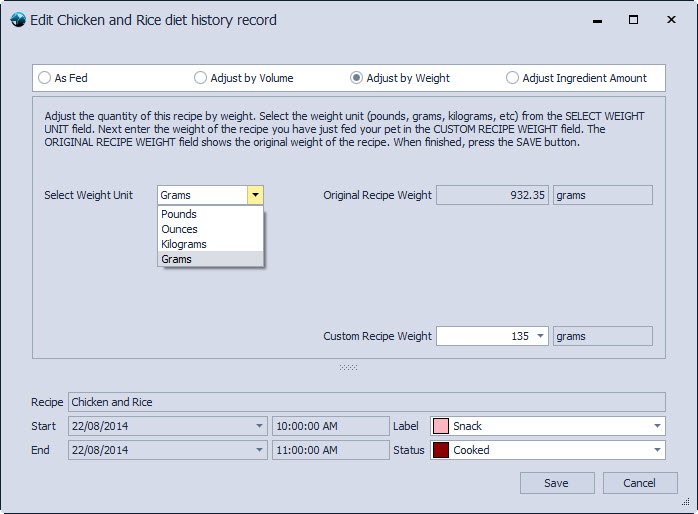
Record recipe By Weight
By Ingredient Amount
We know you might sometimes make a recipe with one or two ingredients missing. Or you may use more or less of an ingredient than the recipe specifies. If so, no problem! Choose to feed by ingredient amount and adjust the recipe however you want. The image below shows the ‘Adjust Ingredient Amount’ form. In this image, we have deselected (unchecked) 2 ingredients: Bone Meal and Omega-3 Fish Oil. When you press the SAVE button, all nutrient information for this recipe, minus the nutrient values for bone meal and omega-3 fish oil, is recorded into the pet’s diet history. Of course, you can also change the amount and unit of measure for any ingredient. To edit, double-click the entry and the dialog will reappear with the values you previously entered. Note that any ingredients you deselect (uncheck) will show up with a zero (0) amount.
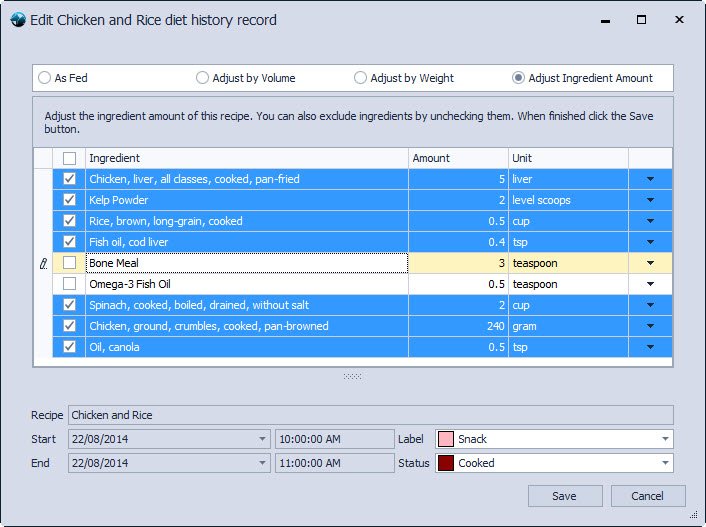
Record recipe By Ingredient Amount
Video Tutorial
Please watch the video below to learn how to use the Diet Tracker module.
0 out of 5 stars
| 5 Stars | 0% | |
| 4 Stars | 0% | |
| 3 Stars | 0% | |
| 2 Stars | 0% | |
| 1 Stars | 0% |